 Grainy
How to Use Grainy: A Complete Beginner's Guide to the Camera
Grainy opens straight into the camera. Everything you need is on one screen, but a few of the controls hide more than they show. This guide walks through every button, from the top bar to the shutter, so you can shoot with confidence on day one.
Grainy looks simple on purpose: a viewfinder, a strip of presets and a shutter button. But there is a lot tucked into that one screen, and knowing where everything is will save you a lot of trial and error. This guide walks through the whole app in the order you will meet it, from the first launch to your first finished photo dump.
First launch
Grainy is a free download from Google Play and works on Android phones. When you open it for the first time, Android asks for permission to use the camera. That is the only permission the app needs to take photos. The microphone is asked for later, the first time you record a video, and if you say no, videos simply record without sound. Grainy never asks for your contacts, your location or an account.
Three short intro screens follow: swipe across the viewfinder to try a look, make a preset your own with grain, light leaks and colour, and shoot photos, videos, GIFs, collages and double exposures. You can skip them, and you land straight in the camera.
There is no sign-up step. Your photos never leave your phone: every preset runs on the device, the app works offline, and nothing is uploaded. If you allow it, the app sends anonymous usage and crash reports to help fix bugs, and you can switch that off at any time in Settings.
A tour of the camera screen
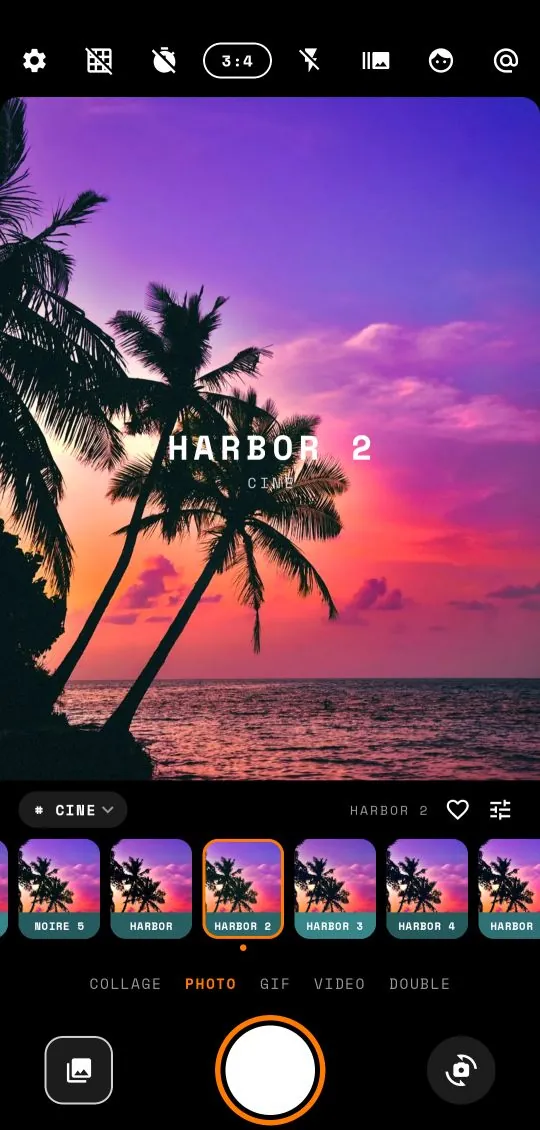
The screen has four zones, from top to bottom:
- The top bar: small icons for settings, the guide, the timer, the frame ratio, flash, burst, beauty and the stamp.
- The viewfinder: a live preview with the current preset already applied. What you see here is what you get.
- The preset bar: the family chip on the left, the preset name, a heart and a slider icon, and below them a strip of thumbnails you can scroll.
- The bottom: the mode row (Collage, Photo, GIF, Video, Double) and below it the gallery thumbnail, the shutter and the flip-camera button.
The top bar, icon by icon
From left to right:
Settings (gear)
Opens the settings page. More on that below.
Guide
Each tap moves to the next guide: off, a rule-of-thirds grid, the grid with a level, the level alone, then off again. The level is useful for horizons and for top-down shots: hold the phone up and you see a horizon line that turns orange when it is straight; lay it flat over a table and it becomes a bubble that centres and turns orange when the phone is level.
Timer
Off, 3 seconds or 10 seconds. Perfect for group photos with the phone propped on a shelf, or for steady night shots without the shake of pressing the button.
Ratio
The pill shows the current frame shape. Tap it to cycle through 3:4, 1:1, 9:16 and full screen. 3:4 is the classic compact-camera shape; 1:1 suits a grid; 9:16 fills a phone screen for stories.
Flash
Switches the flash on or off. For the digicam look at night, flash on is the whole point.
Burst
Takes one, three or five shots per press, 180 milliseconds apart. Great for moving subjects, jumps, hair flips and anything where the perfect moment is hard to time.
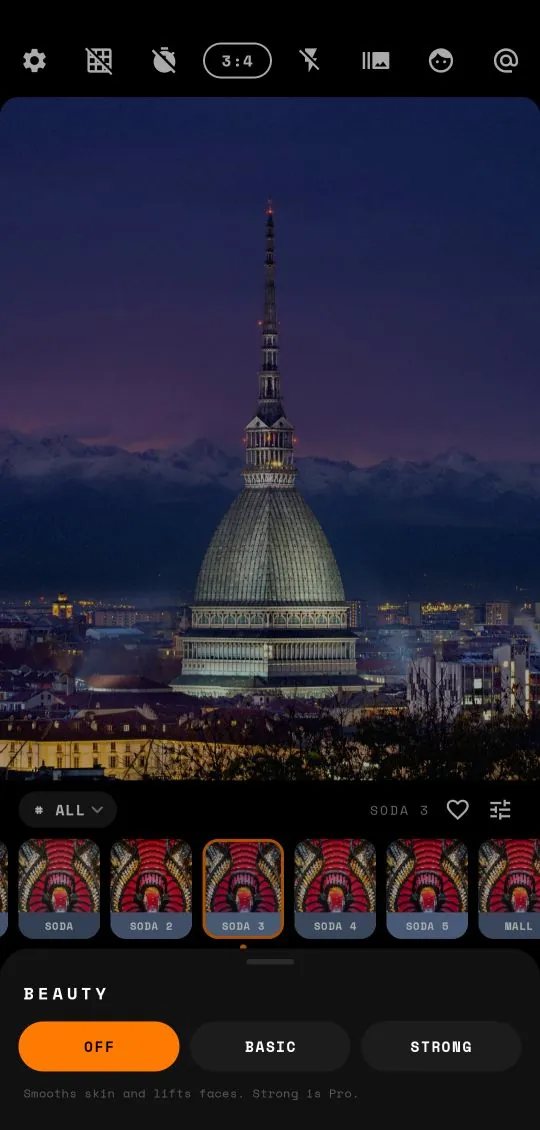
Beauty
Opens a small panel with Off, Basic and Strong. It smooths skin and lifts faces, and it uses face detection that runs on the phone, so it only works on the faces it finds and leaves the rest of the picture alone. Basic is free; Strong is Pro. It works with every preset.
Stamp (@)
Switches the name-and-city stamp on or off. You set the text itself in Settings.
Choosing a preset
Grainy has 330 presets, about 200 of them free, sorted into six families: Digicam / CCD, Faded film, Cinematic, Warm analog, Black and white, and Clean. There are three ways to move between them.
- Swipe sideways across the viewfinder. The fastest way. The next preset is applied instantly, and its name flashes on screen.
- Tap a thumbnail in the strip below the viewfinder. Each thumbnail shows the same sample picture with that preset, so you can compare at a glance.
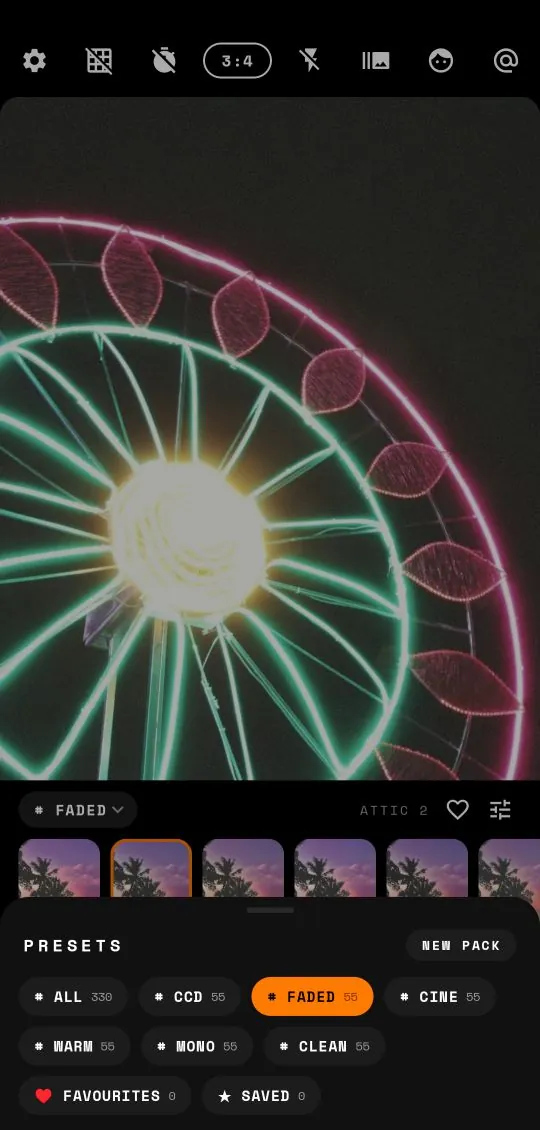
- Tap the family chip (it says ALL at first) to open the presets panel. Pick a family to narrow the strip down, or open Favourites or the presets you have saved.
Tap the heart next to the preset name to add the current preset to your favourites. Once you have a handful, the Favourites filter becomes a personal shortlist that saves a lot of scrolling.
Tap the slider icon next to the heart to open the adjust panel, where you can change intensity, exposure and, with Pro, highlights, temperature, tint, colour, vignette, grain and light leaks. That has a guide of its own.
Presets with a small PRO badge can still be tried. Select one and the viewfinder shows it live. You will only be asked to upgrade when you try to save a photo with it.
The five shooting modes
The mode row above the shutter switches what the shutter does. Tap a mode to select it.
Photo
One tap, one photo, preset baked in. This is where you will spend most of your time.
Collage
Shoot several photos in a row and Grainy lays them out as one picture. The shutter shows how many cells you have filled, and you can switch preset between frames so each cell gets its own look. Tap Collage again to choose the layout. See the collage guide for the details.
GIF
Press once and Grainy takes 12 frames, 140 milliseconds apart, and loops them into a short animated GIF with the preset applied to every frame.
Video
Records a video with the preset live: up to 10 seconds free, up to 60 seconds with Pro. The GIF and video guide has tips for both.
Double
A Pro mode for double exposures: take one picture, then a second, and Grainy blends them into one. Read how to make a double exposure.
Where your photos go
Every photo and GIF is saved to Pictures/Grainy on your phone, and every video to Movies/Grainy. They show up in Google Photos or your phone's gallery app like any other picture, ready to share. A short message on screen confirms each save.
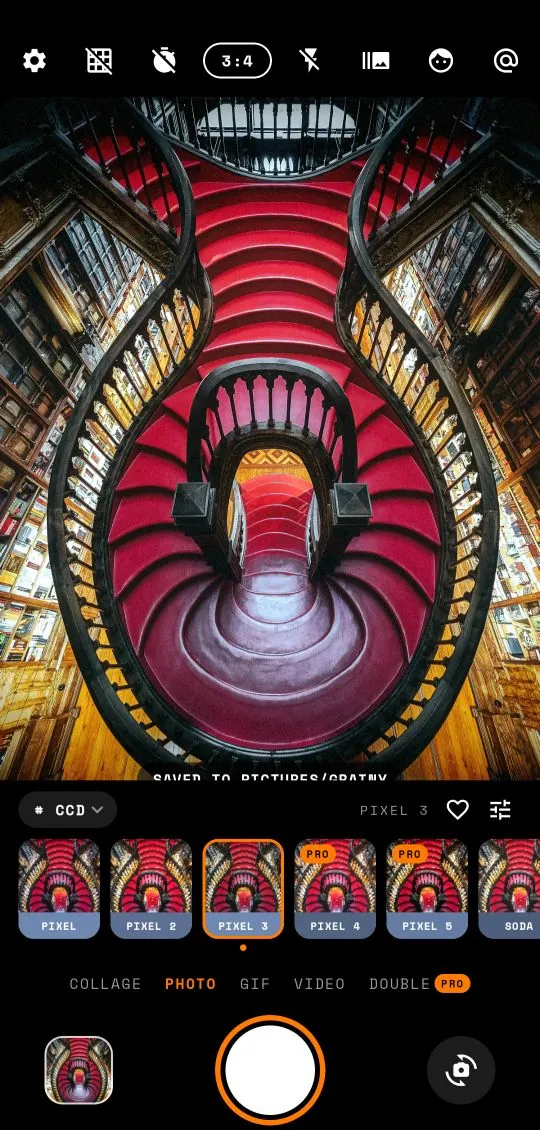
The thumbnail at the bottom left opens Grainy's own gallery, which shows the photos you took with the app. From there you can share, delete, or open the Studio to apply presets to any photo already on your phone, including pictures taken with another camera. The Studio guide explains how.
No photo ever gets a watermark, free or Pro.
Settings worth knowing
Tap the gear at the top left to open Settings. The useful parts:
- Stamp: type your name and a city. When Stamp on photos is on, Grainy prints them in the corner of your photos in a small typewriter font, as @NAME on one line and FROM CITY on the next. It is off until you switch it on.
- Level guide: turns the level on or off.
- Orange date stamp: adds the glowing orange date to the corner of Digicam and CCD shots, like an old compact camera. It is on from the start; switch it off for a cleaner frame.
- Camera: shutter sound (always on where the law requires it), volume keys as a shutter button, a little vibration on capture, and mirrored selfies.
- Theme: System, Light or Dark.
- Language: Grainy is translated into 20 languages and follows your phone's language by default, or you can pick a different one.
- Privacy: choose your ad privacy options and whether to share anonymous usage and crash reports.
- Pro: upgrade, or restore a purchase you made before, for example after changing phones.
- Contact: send us a question or a bug report from inside the app.
Free and Pro
Everything in this guide works in the free version, with a few limits. About 200 presets are free, you can save photos with intensity and exposure adjusted, shoot the free collage layouts with two, three or four cells, make GIFs, and record videos up to 10 seconds. The free version shows ads, and they never cover the viewfinder.
Grainy Pro unlocks every preset and pack, every adjust slider, saving your own presets, every collage layout up to nine cells, double exposure, Strong beauty, videos up to 60 seconds, and removes the ads. It comes as a monthly or annual subscription or a one-time lifetime purchase. You can try every Pro preset and slider live before buying, so you know exactly what you are paying for. If you change phones, open Settings and tap Restore purchases.
A simple routine for your first day
If you want to get comfortable quickly, try this:
- Pick one family that matches the light you are in: Digicam / CCD for indoors and night, Faded or Warm for daylight, Black and white for strong shadows.
- Swipe through it and heart three presets you like.
- Switch the family chip to Favourites, so the strip only shows those three.
- Shoot the whole day with them. Try one burst, one GIF and one collage along the way.
- In the evening, open the gallery and pick the best eight or ten for a photo dump.
After a day like that you will know which presets suit your style, and the camera will feel like yours. If anything does not work as described here, the support page has answers to common questions and a way to reach us.
Frequently asked questions
Where does Grainy save my photos?
Photos and GIFs go to Pictures/Grainy and videos to Movies/Grainy, so they appear in your gallery app. Grainy also keeps them in its own in-app gallery.
How do I change the filter?
Swipe left or right across the viewfinder, or tap a thumbnail in the preset strip under it. The new preset applies live before you shoot.
What aspect ratios does Grainy support?
3:4, 1:1, 9:16 and full screen. Tap the ratio pill in the top bar to cycle through them.
Does Grainy need an internet connection?
No. All presets and processing run on your phone, so the camera works offline.